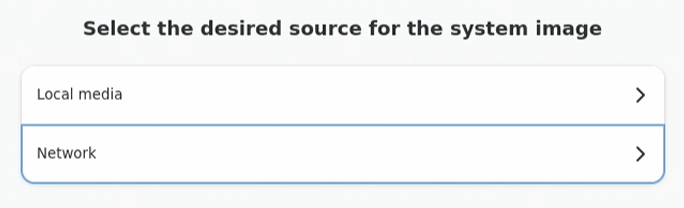
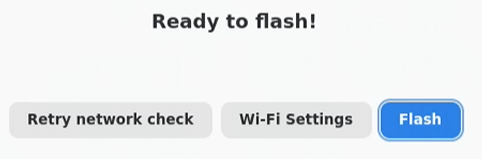
If you have a need to recover the Ryzen AI developer platform, there are multiple ways to recover depending upon the state of the machine.
System Can Boot
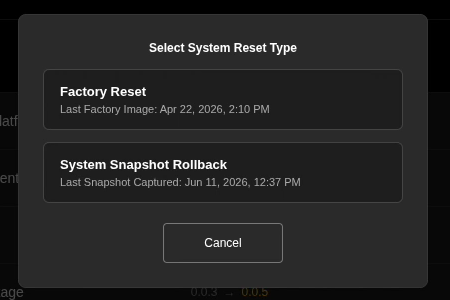
If the system can boot, then there are two recovery experiences available under the system reset menu.
In AI Developer Center visit the "Manage" tab and press the "System Reset" button.

A popup will be displayed showing possible recovery experiences.
⚠️ Warning: Data Loss
- System Snapshot Rollback: Will reset user data to the state at the rollback point. Any data created or modified after that point will be lost.
- Factory Reset: Will erase all user data and return the system to factory configuration.
System Cannot Boot
When the system can't boot successfully, you might still be able to reset the factory's default configuration if the disk is intact.
Disk Is Intact
- At the POST screen, press F2 and select Setup Utility
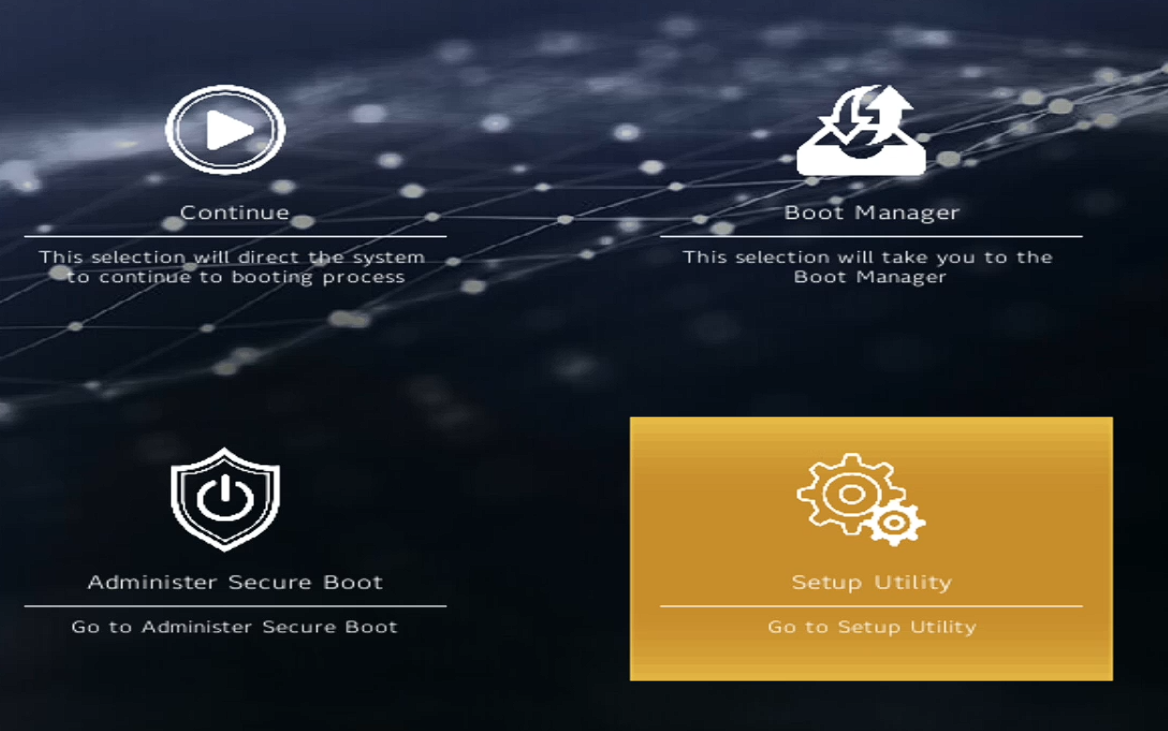
- Pick menu <Advanced> and select Launch Recovery Environment
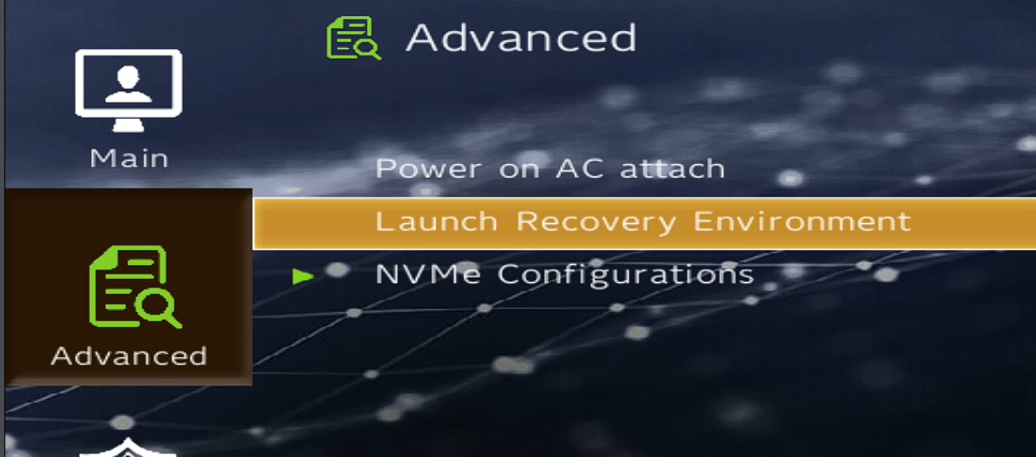
- The recovery will take a few moments to load, please be patient
- Once loaded, select "Factory reset"
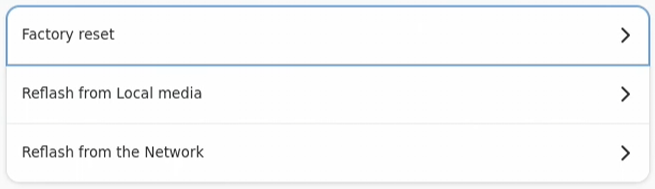
- Follow on screen instructions to restore the factory image
Disk Is Not Intact
If the factory reset from BIOS doesn't work, then you can download a recovery image to a USB key using another machine.
Requirements
- You will need a USB key that is at least 1GB
- You need an operating system supported by Balena Etcher
Instructions
- Download and setup Balena Etcher
- In the Balena Etcher GUI select "Flash from URL"
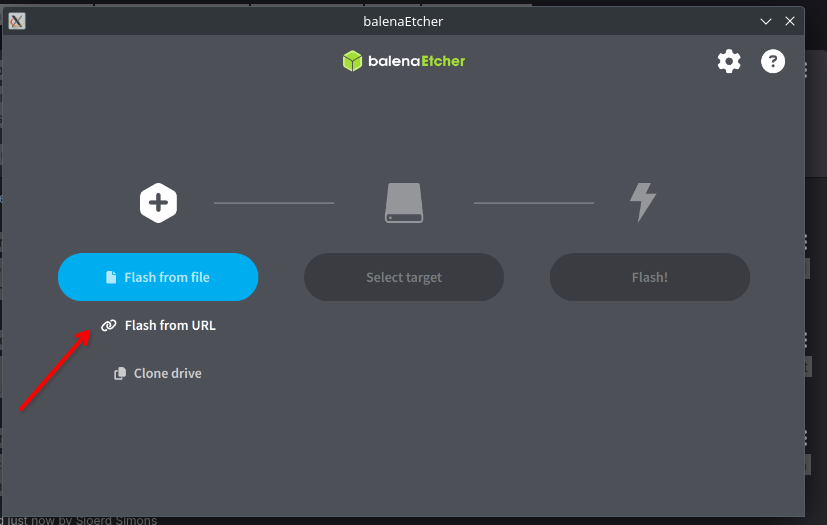
- Copy this URL to your clipboard:
https://images.ryai.dev/recovery/recovery.zip - Paste that URL into the popup in Balena Etcher
- Plug in your USB key and press Select Target
- Press Flash!
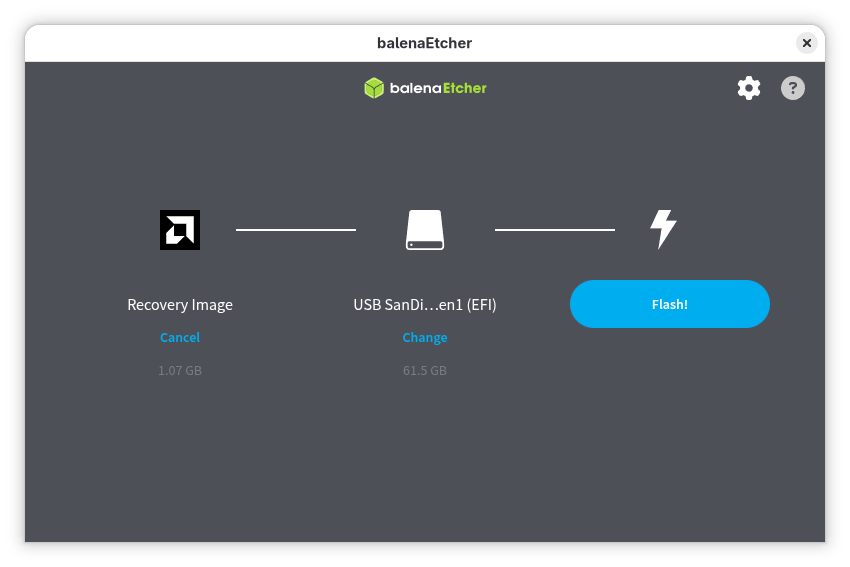
- Reset the system with the USB key plugged in
- Press F12 on the BIOS POST screen
- Select the USB key in the boot device list
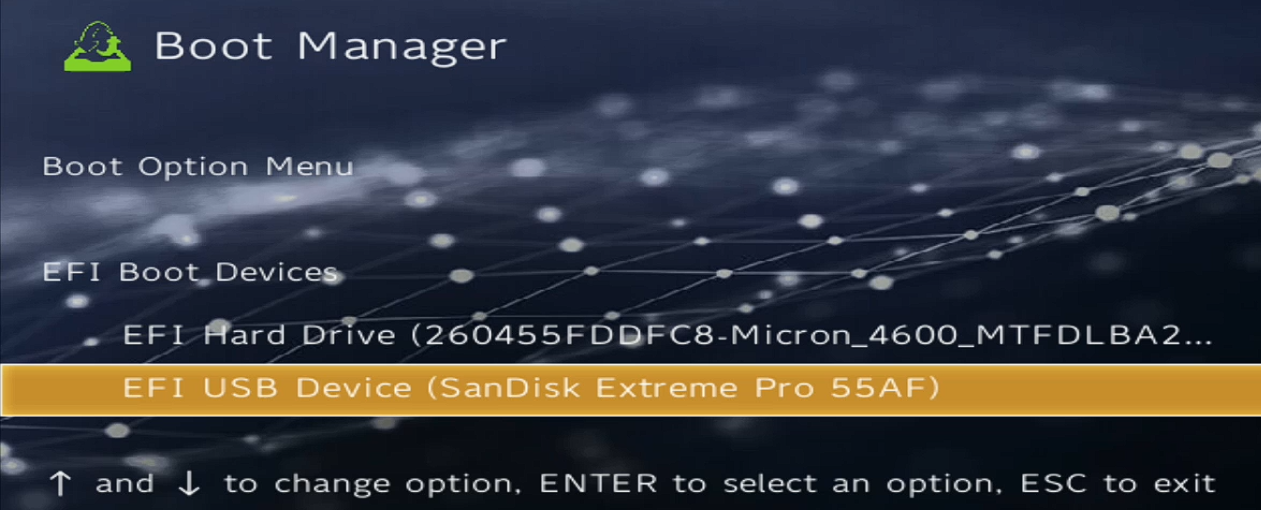
- Follow on screen instructions to restore the factory image